 Using the Text Messaging screen:
Open the Text Messaging screen:
The Text Messaging screen may be found on the Texting Menu:
The Texting Menu is reached via the Other Front Desk Tasks Menu:
To reach the Other Front Desk Tasks Menu:
Depending on your Skyware Systems set-up, you may or may not have a quick menu option for the Other Front Desk Tasks Menu area. If you can, select Other => from the Quick Menu on the left side of the screen.
 OR
OR 
OR
Select Other => from the Other section (bottom right) of the Full Menu.
Click the icon on the left for the Full menu.
 OR
OR 
This will display the Full menu in a tabular form, with four sections, Registration, Status, Cashier and Other.
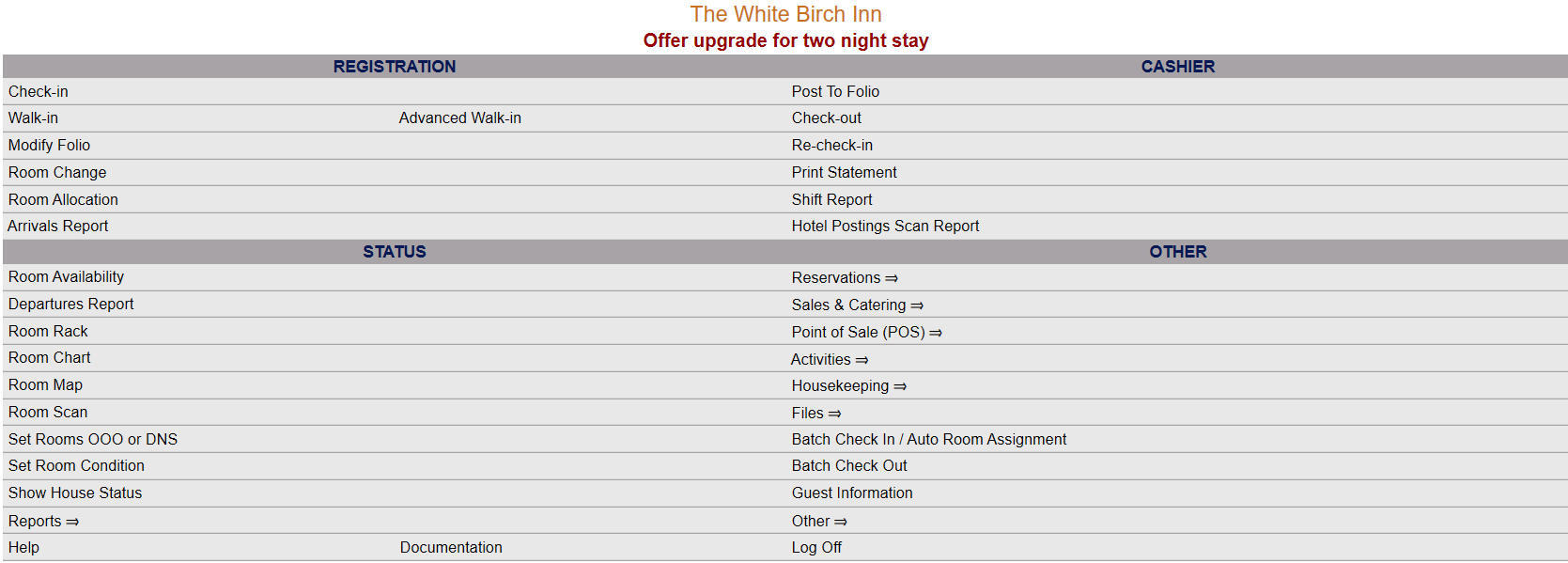 OR
OR 
From the Other Section, select Other =>.
 OR
OR 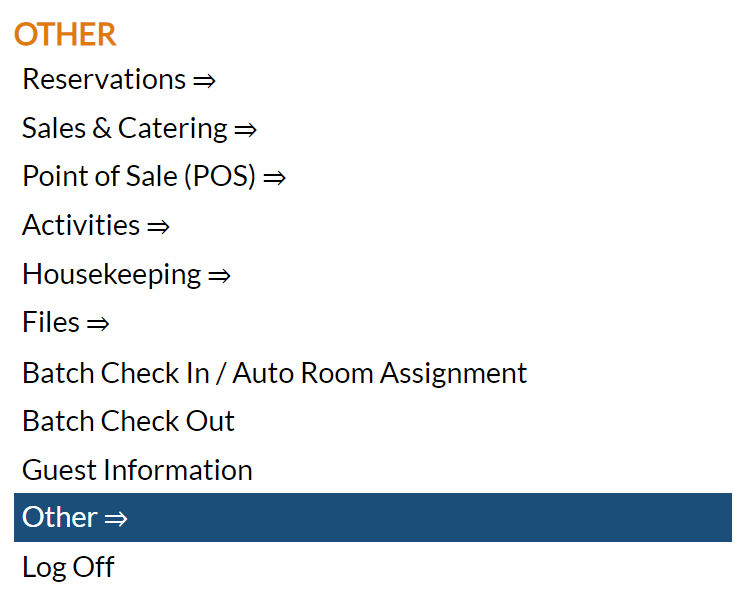
This will display the Other Front Desk Tasks Menu.
The Other Front Desk Tasks Menu area is divided into four sections: Other List 1, Other List 2, Documents and Web.
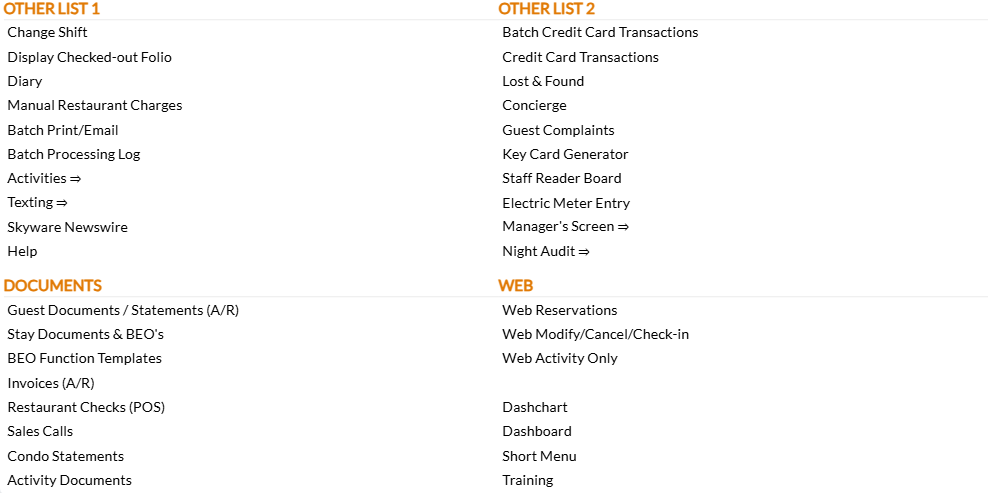
Select the Texting => command from the Other List 1 section.
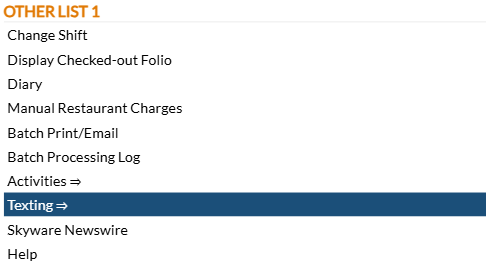
This will open the Texting Menu, which is divided into 4 sections: Items, Reports, Custom Messages and Other.

Select Text Messages from the Items section.

OR:
The Text Messaging command is also on the Activities Menu. There are multiple ways within Skyware to reach the Activities Menu:
Depending on your Property's configuration, you may be able to access the Activities Menu directly from the Quick Menu.
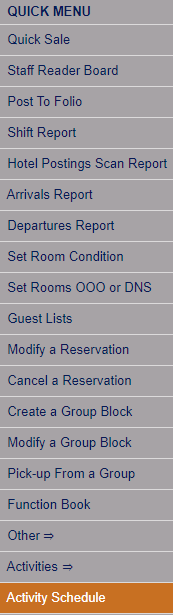 OR
OR 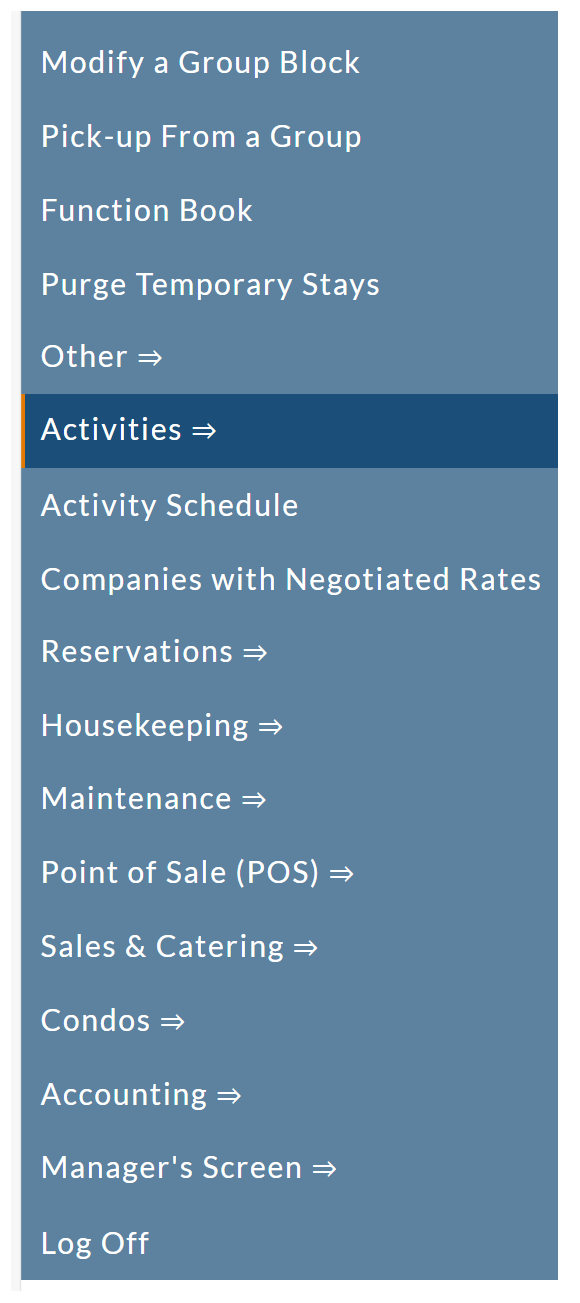
OR
You may select Activities => from the Other section of the Full Menu
Click the icon on the left for the Full menu.
OR
This will display the Full menu in a tabular form, with four sections, Registration, Status, Cashier and Other.
OR
From the Other section (bottom right) select Activities =>.
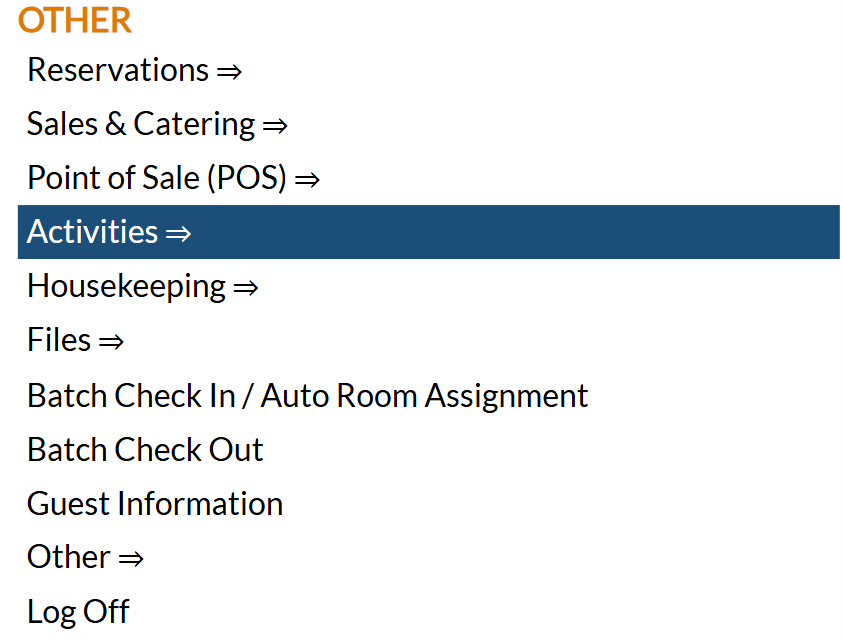
OR
You may select Activities => from the Other Front Desk Tasks menu.
To access the Other Front Desk Tasks Menu area:
Select Other from the Quick Menu on the left to be taken to the Other Front Desk Tasks Menu.
 OR
OR
Or select Other => from the Other section (bottom right) of the Full Menu.
Click the icon on the left for the Full menu.
OR
This will display the Full menu in a tabular form, with four sections, Registration, Status, Cashier and Other.
OR
From the Other Section, select Other =>.
OR
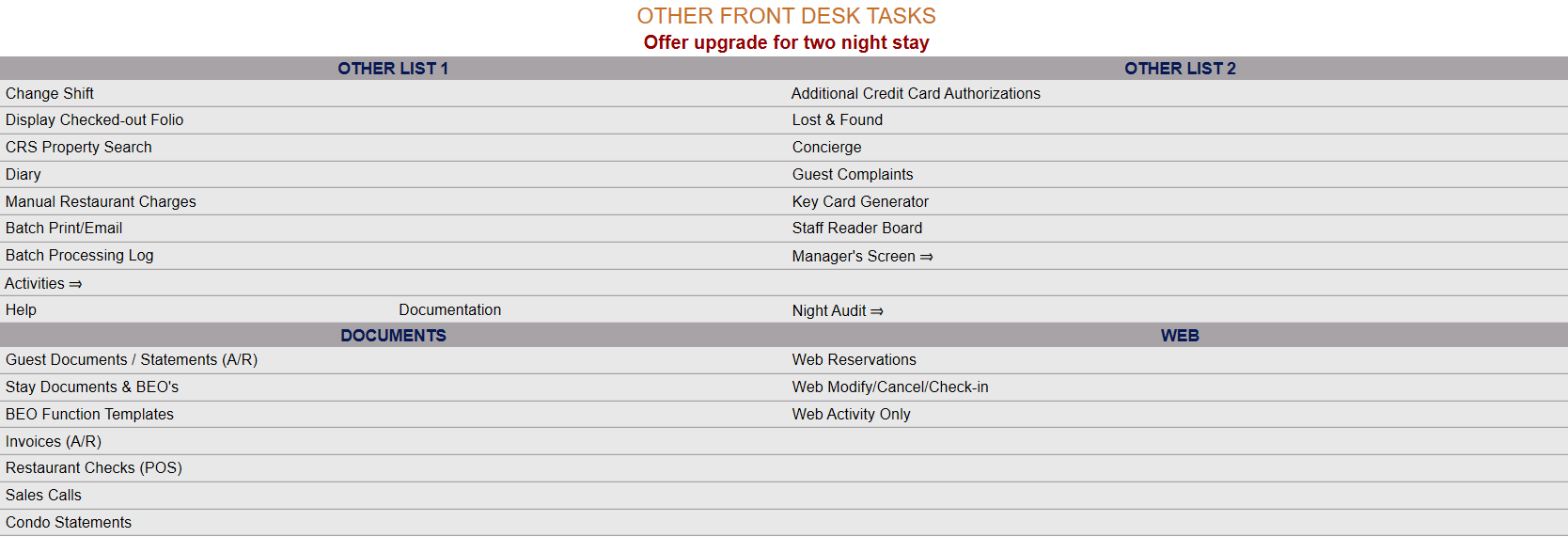
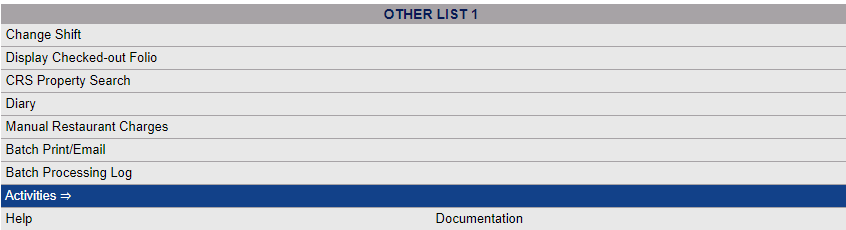
This will display the Other Front Desk Tasks Menu, which has four sections, Other List 1, Other List 2, Documents and Web.
 OR
OR 
Select Activities => from the Other Front Desk Tasks menu, Other List 1 section.
 OR
OR 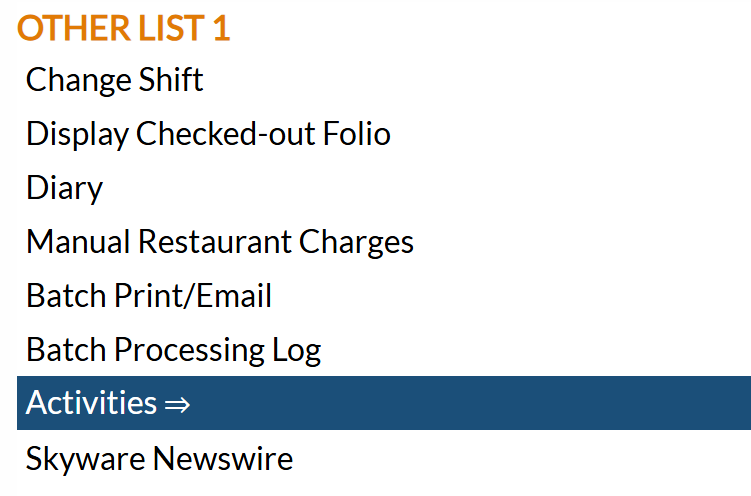
This will open the Activities Menu, which has two sections, Items and Reports.
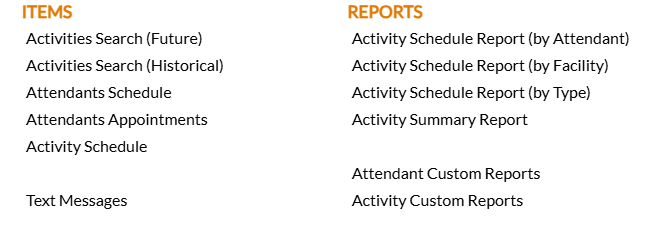
Select Text Messages from the Items section.
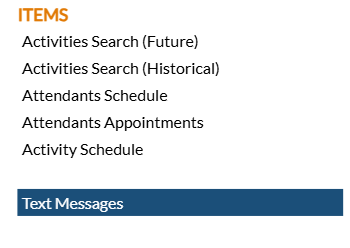
When selected, the Text Messages screen will open.
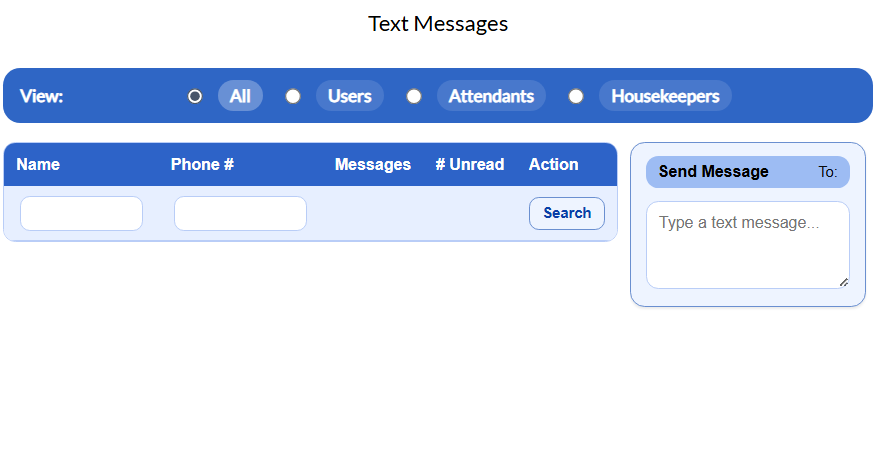
You may select to View the available text recipients using the radial button option for Guests, Users, Attendants or Housekeepers.
If the list of possible recipients shown is very long, you may search for a specific individual either by name or by phone number. Enter the information into the field and click the button "Search" to bring up any matches.

Note: This screen can only be used for text messaging if the intended recipient has a PHONE NUMBER entered in their profile. Guests will only show up on this screen if they have already received a text message from the Property via a different screen, as this screen is intended for receiving guest REPLIES. Any Users, .Attendants or Housekeepers will only be shown on this screen if there is an associated phone number in their account. However, message chains may be INITIATED from this screen IF the desired recipient is listed. If a guest is not, initiate the text messaging from a different screen. If a staff member is not, their User account profile will need to be edited (to add the phone number) before they may be messaged.
The recipient must be selected before the message is sent for the phone number to appear in the "Send Message To" field, and for the "Send" button to appear.
Text messages sent using this screen are limited to a maximum character count of 1600.
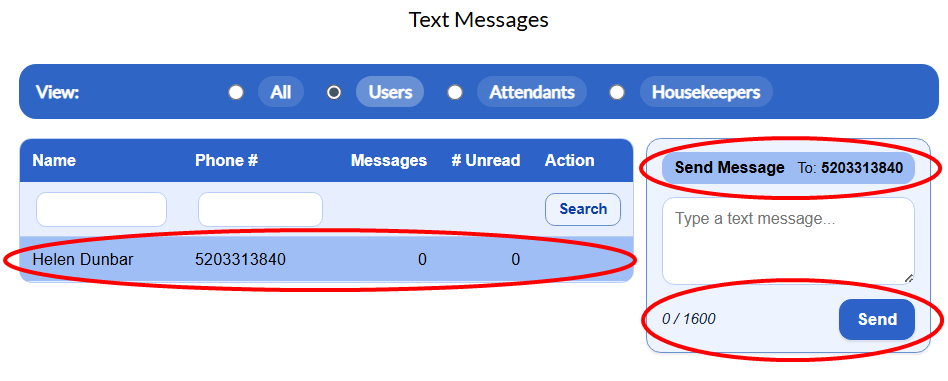
If multiple recipients are available in the selected category, the first entry (alphabetically displayed) will automatically be selected as the recipient. To select a different recipient simply click on their name in the list on the left, and the phone number the message will be sent to will update.
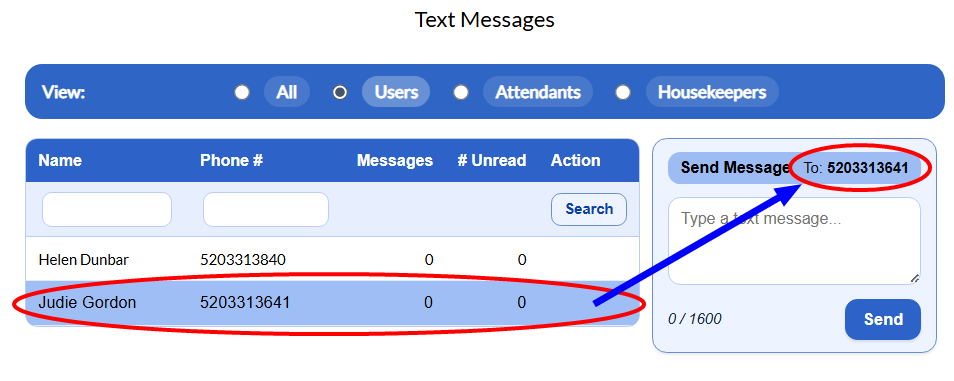
All messages sent through this system can be read in Skyware. Each possible recipient will be listed with the name and phone number entered into Skyware on their profile, and two numbers, one number representing the number of messages sent using this system and the other one the number of unread messages.
To send a message to the selected recipient, type into the field that says "Type a text message". You may send a text with up to 1600 characters. The character count will display to the bottom left of the texting field.
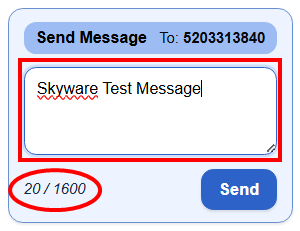
When ready, click the button to send the message. A GREEN box will appear below the texting area. Green indicates an OUTGOING text message,
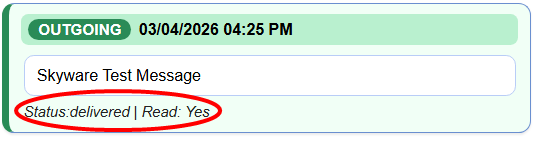
The text message sent appears in the text field. The status of the message appears below the text field, indicating if the message has been delivered, and if it has been read.
Incoming texts will appear in BLUE. The most recent message in the chain will always appear at the top of the chain, directly under the texting area. This is to make it easy to see it, if the chain of messages gets extensive; but the whole chain will be displayed and the screen may be scrolled down to read them if desired.
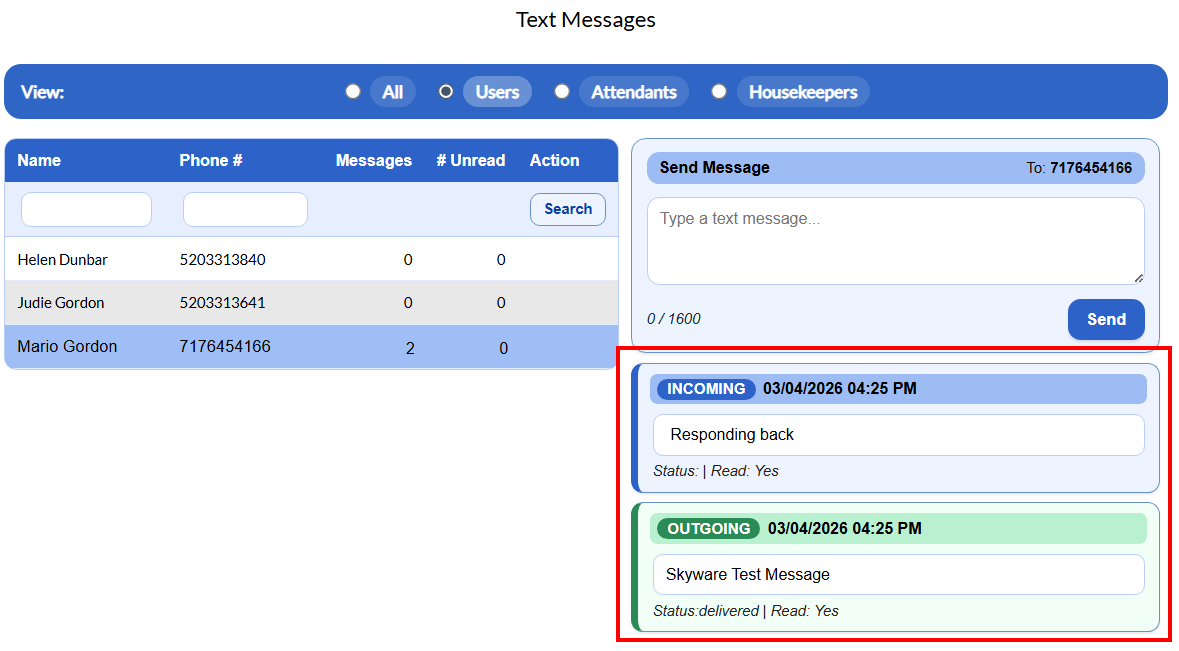
Any messages sent or received for the recipient selected on the left will automatically be displayed on the right.
When using the Guests option , an additional button will be available, the "Open" button, as part of the Guest information on the left side. This button allows you to view any Activities or Stays associated with the guest/the phone number.
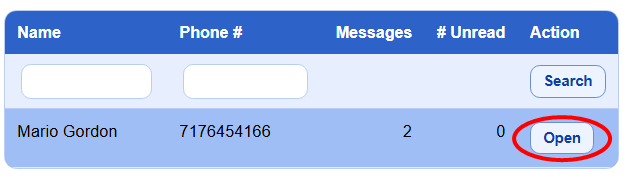
Click on the "Open" button to open a new window displaying a scrollable list of all activities or stays associated with the guest.
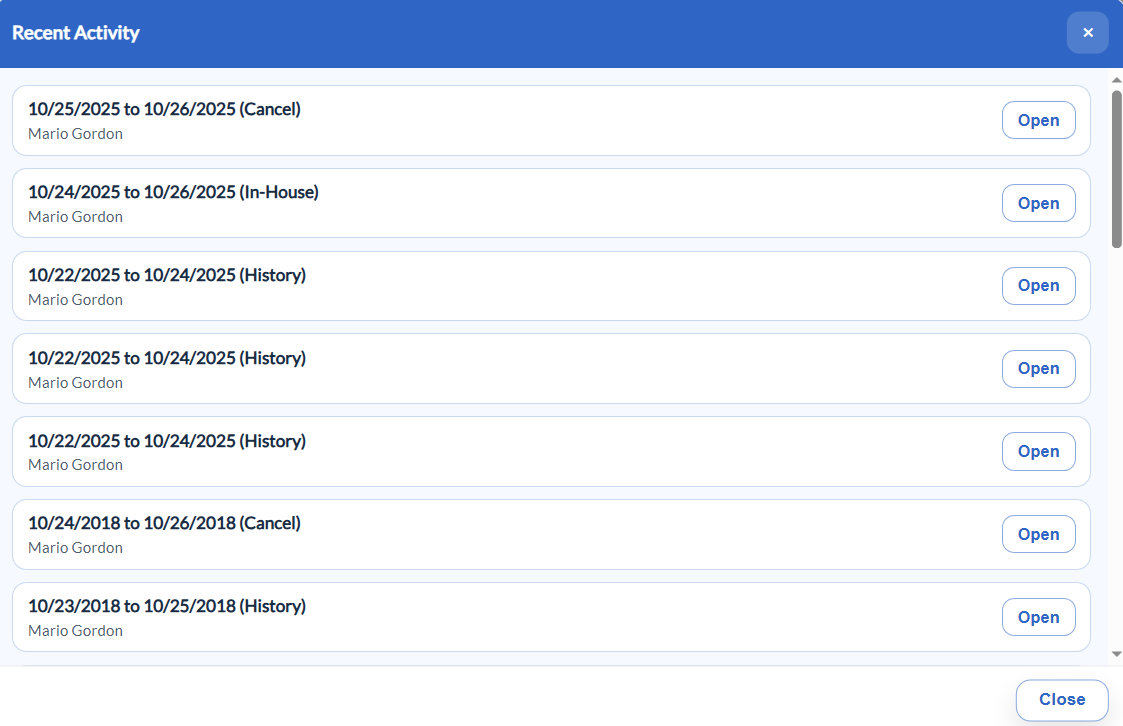
Click on any "Open" button to the right of that activity or stay to be taken to the relevant screen to view further details, or click "Close" to shut the window and return to the Text Messages screen.